
MKCinema › Fire TV and Android TV
Install MKCinema on Fire TV and Android TV.
It takes a minute and needs no computer. You type one short address into the Downloader app on your TV.
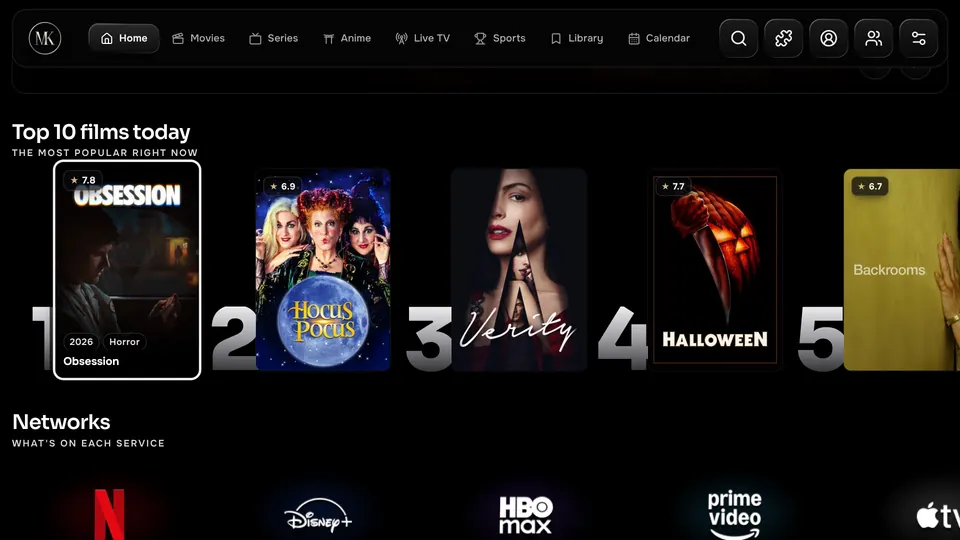
Fire TV and Fire Stick, step by step
- Install the free Downloader app from the Amazon Appstore.
- In Fire TV Settings › My Fire TV › Developer options, allow Install unknown apps for Downloader.
- Open Downloader and type
tv.mkcinema.appinto the address box, then choose Go. - When the download finishes, choose Install, then Open.
The menu names on Fire TV change a little between versions. If you cannot find Developer options, the setting for unknown apps is also reachable from the Downloader prompt.
Android TV and Google TV
Use the same address in any browser or downloader app on the TV, or download the TV app from the download section on another device and send it to the TV. Android may ask you to allow installs from the app you used. That is normal for apps installed outside a store.
Using it with the remote
- The directional pad moves around the screen, and OK selects.
- Back goes up one level.
- Your phone can be the remote. Scan the code shown on the TV to pair it.
- Sign in with email and password to bring your library, progress, addons and settings to the TV.
Other TVs
LG webOS and Samsung TV (2023 and newer, through TizenBrew) are available as betas. See the project page on GitHub for the steps.
Questions, answered.
Is the Fire TV app safe?
The app is MKCinema itself and its source is public on GitHub. It is signed with MKCinema's own key, and every download is listed with a SHA-256 checksum.
Why does Fire TV warn me about unknown apps?
Fire TV shows that warning for any app that does not come from the Amazon Appstore. You allow it once for the Downloader app.
Does it update itself?
The app loads the latest MKCinema every time it opens, so features arrive without reinstalling.